Outreach
Outreach is where you send the emails Unclench writes for your leads, and where their replies land. Nothing goes out until you approve it. Owners and admins can use it.
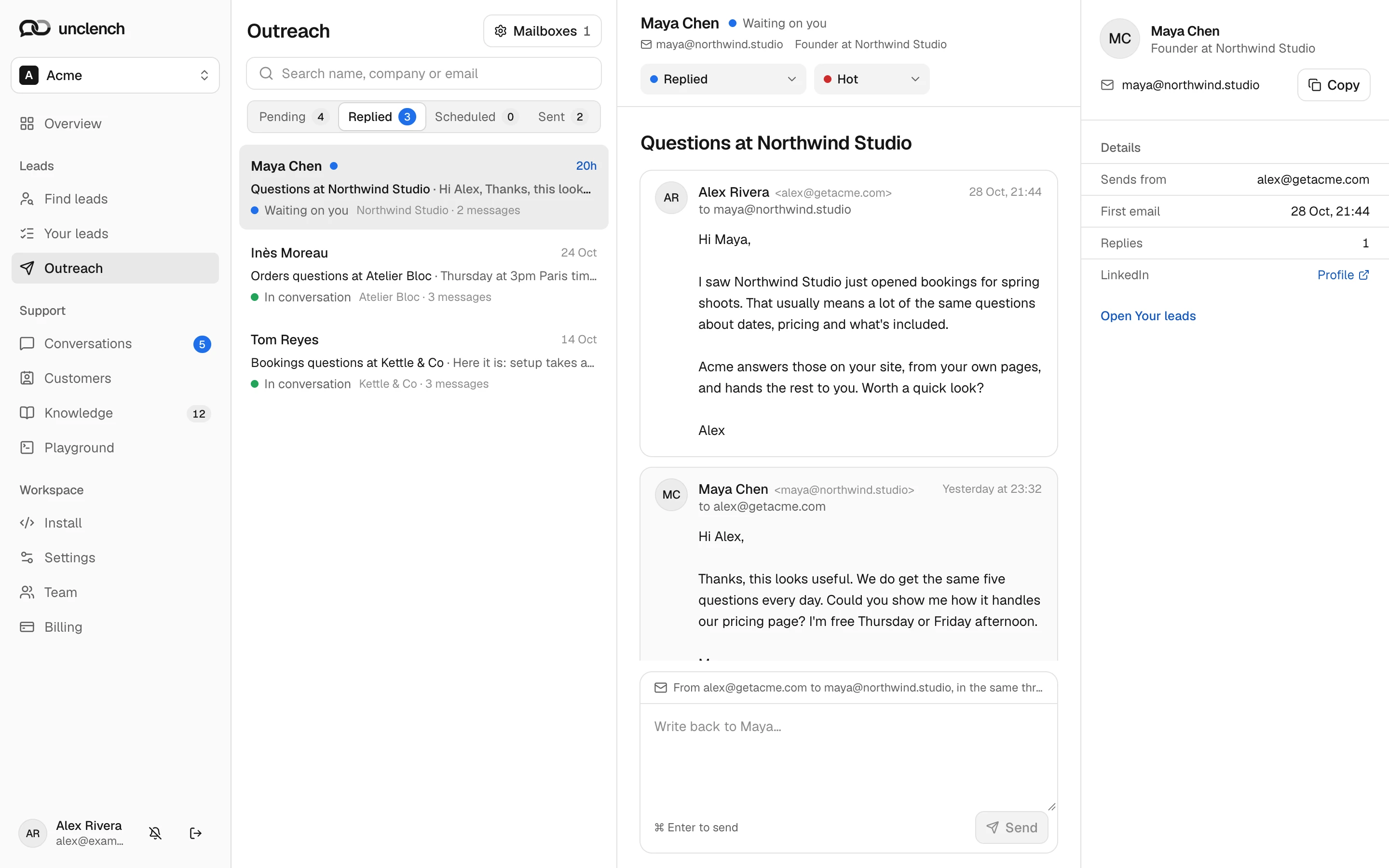
Emails are sorted into four folders: Pending (waiting for you to approve), Scheduled (approved and about to go), Sent and Replied. Search finds a lead by name, company or email.
Set up
Go to Settings, Mailboxes (or choose Mailboxes in Outreach) and add:
- Your business address. It goes at the bottom of every email.
- A mailbox to send from. Choose Connect a mailbox, pick your provider, and enter your name, the email address and an app password.
Send from a separate domain, like [email protected] instead of [email protected], so your main email address stays safe.
Getting an app password
- Google: turn on 2-Step Verification, then create one at myaccount.google.com/apppasswords .
- Microsoft 365: create one under Security info . If it’s refused, ask your admin to turn on SMTP AUTH for your mailbox.
- Zoho: create one under Security, App Passwords .
- Another provider: you’ll also need its mail server addresses, which your provider lists in its help pages.
Sending
When you get a lead’s contact in Find leads, their first email is written for you and waits in Pending. Send email on the lead takes you there.
- Open an email to edit it, then choose Approve to send, or approve everything with Approve all.
- Approved emails go out on weekdays during working hours, a few at a time.
- Don’t send pulls one back before it goes.
A new mailbox starts with a few emails a day and sends more each day, so your emails don’t land in spam. If yours was already warmed up elsewhere, choose Edit on the mailbox and tick that.
You can connect 1 mailbox during the trial and on Solo, 5 on Starter, 10 on Growth, 25 on Scale and 50 on Business.
Follow-ups
If someone doesn’t reply in three days, a short follow-up is written and put in Pending for you to approve.
Replies
Replies show up in Replied within a few minutes, with a blue dot on the ones waiting on you. We also email you each reply, with a link to the conversation.
We read every reply and update the lead’s stage and temperature for you: Meeting booked when they agree to a call, Not interested when they say no. You can change it from the conversation or Your leads.
To answer, type in the box under the conversation and choose Send, or press ⌘ Enter. It goes from the same mailbox, in the same email thread.
Follow-ups stop once someone replies. Leads who unsubscribe or whose email bounces aren’t emailed again.
If something goes wrong
- Didn’t accept that username and app password: create a new app password and try again. On Microsoft 365, ask your admin to turn on SMTP AUTH.
- Couldn’t reach the server: check the server address your provider gives you.
- Stopped accepting its app password: the mailbox has paused. Choose Edit on it and add a new app password.
- Paused because too many emails bounced: remove the leads with bad addresses, then choose Resume sending.