Your leads
Your leads holds everyone you chose Get contact on in Find leads and everyone you added from your chats. It’s a short list for keeping track of outreach, not a CRM. It’s for owners and admins.
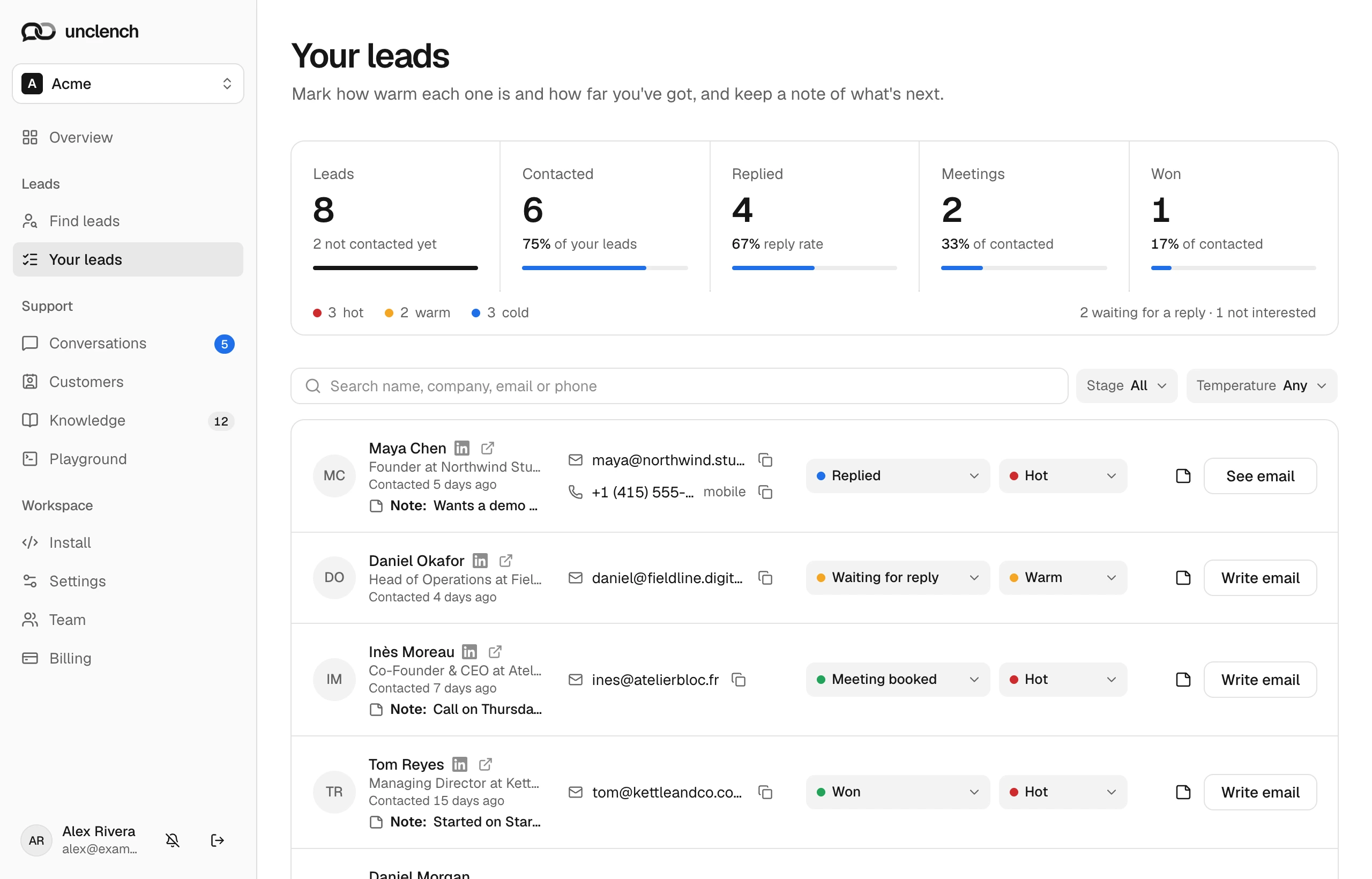
How your outreach is going
The top of the page shows how many leads you have, how many you’ve contacted, how many replied (with your reply rate), how many got to a meeting and how many you won. Under that, how many are hot, warm and cold, waiting for a reply, or not interested.
Each lead
A row shows their name, title, company and country, links to their LinkedIn profile and company website, their email and phone with copy buttons, when you added or contacted them, and the first line of your note. Leads from your chats say From your chat.
Write the first email
Choose Write email on a lead with an email or phone. A few seconds later you get a short draft: a specific subject, 50 to 100 words about what someone in their role deals with and how you help, a question they can answer in a few words, your name, and a link to your website. What it says about you comes from your business summary under Settings, and it follows the tone you set for your agent. It invents no features, prices or customers.
Unclench never sends email for you. You send it from your own mail app and address, so replies land in your inbox.
- Open in mail app opens a new message with the subject and body filled in, and moves the lead from Not contacted to Waiting for reply.
- Copy email copies the subject and body with the links kept. It doesn’t change the stage.
- Write another replaces the draft. Each lead keeps one draft; See email and Hide email show it again later.
If you’ve already written to them, you get a short follow-up instead. If they came from your chats, it picks up from what they asked.
The link at the end carries a token for that lead. When they click it and start a chat on your site, the agent knows who they are, what stage they’re at and your notes, and never mentions any of it. Keep the link as it is when you edit the email.
Stages
| Stage | Use it when |
|---|---|
| Not contacted | You haven’t written to them. Every new lead starts here. |
| Waiting for reply | You’ve written and are waiting. Open in mail app sets this for you. |
| Replied | They wrote back. |
| Meeting booked | You have a call or demo planned. |
| Won | They became a customer. |
| Not interested | They said no. |
Apart from Open in mail app, a stage only changes when you change it.
Temperature and notes
The second picker marks how interested they seem: Hot, Warm or Cold. New leads start as Cold.
Choose the note button to write what they said and what’s next, up to 2,000 characters, then Save note (or Cmd+Enter, Ctrl+Enter on Windows).
Find a lead
Search by name, company, email or phone, and filter by Stage and Temperature. With more than 25 leads, choose 25, 50, 100 or 250 per page.
There’s no way to remove a lead or export the list yet. Drafting emails needs an active trial or plan; without one you can still copy details, change stages and add notes.