Add the chat to your site
The chat is one snippet of code. Paste it into your site once and a chat button appears in the bottom-right corner of every page.
Copy your snippet
Open Install in the console and choose Copy code. Your snippet already has your workspace details in it.
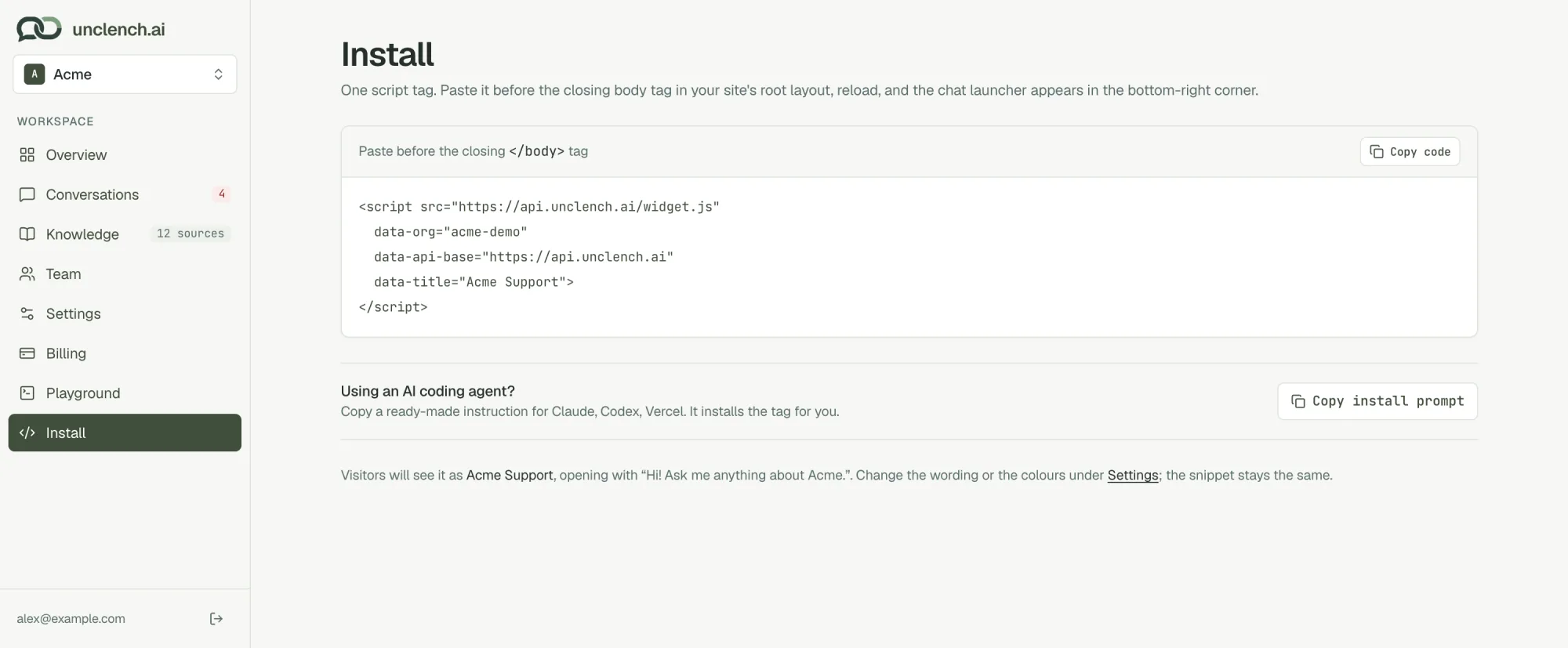
Paste it just before the closing </body> tag, in the part of your site that’s shared by every page. Keep it exactly as copied.
You only install it once. Changes you make later to the name, welcome message or colours reach your site on their own; you never need to paste a new snippet.
Where it goes on common platforms
Shopify
In your Shopify admin, go to Online Store → Themes, then … → Edit code on your live theme. Open theme.liquid and paste the snippet just above </body>. Save.
It also works anywhere else you can add a script: website builders like Framer, docs sites, or inside your own app’s dashboard.
Let an AI coding agent do it
If you use Claude, Codex, Cursor or a similar tool on your site’s code, choose Copy install prompt on the Install page and paste it into the agent. The prompt includes your snippet and tells the agent exactly where to put it.
Check that it works
Open your site in a new tab and reload. You should see a round chat button in the bottom-right corner.
Not there? The most common reason is that your workspace doesn’t have a plan yet. See Troubleshooting.
The snippet shows the chat on every page it’s on. To show it only on some pages, add the snippet only to those pages instead of the shared layout.