Answer customers
Every chat on your site shows up in Conversations, whether your agent handled it or your team did.
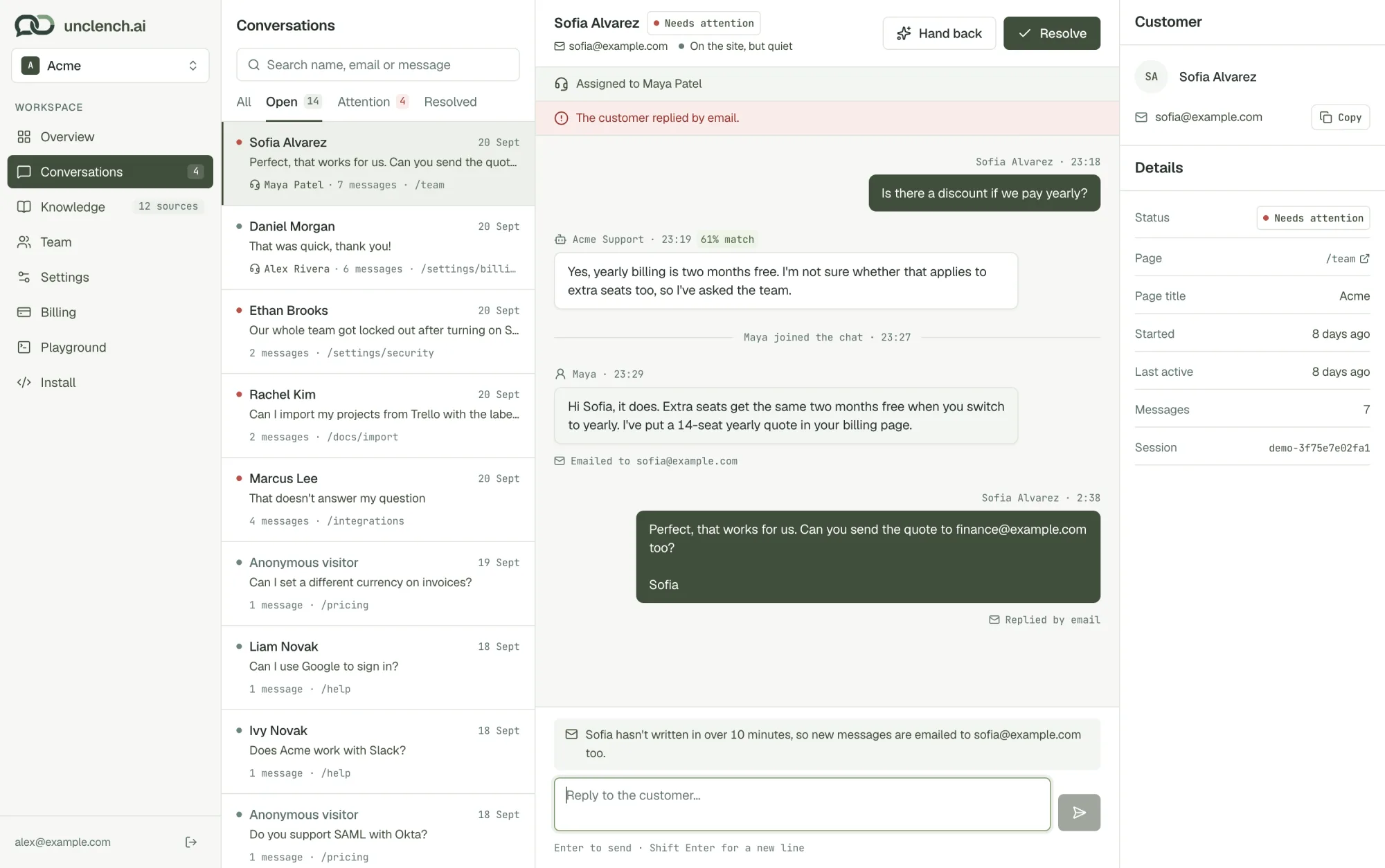
The inbox
The list on the left has four tabs:
- Open: chats still going. This is where you start.
- Attention: chats that need a person. The count in red is how many are waiting.
- Resolved: finished chats.
- All: everything.
Search by name, email or anything said in the chat. Each row shows the latest message, who’s handling it, and the page the customer was on.
On the right you’ll see the customer’s details (name, email, phone if you asked for it), the page they were on, when they started and when they were last active.
Why a chat needs attention
A chat moves to Attention when the customer asks for a person, the answer isn’t in your help content, they want to cancel or seem frustrated, they rate a reply as not helpful, or they reply by email. A note at the top of the chat says which.
If you’ve set working hours, messages that arrive during your hours also wait here for your team.
Take over a chat
Open the chat and choose Take over. Your agent stops replying and you’re talking to the customer directly. The chat shows “Assigned to” with your name, so the rest of the team knows you’ve got it. Anyone on the team can still reply.
Type your reply and press Enter to send. Shift and Enter adds a new line.
The header tells you whether the customer is still there:
- On the site now: they’ll see your reply straight away.
- On the site, but quiet: they haven’t written for over 10 minutes. Your reply shows in the chat and is emailed to them too.
- Not on the site: your reply goes to them by email. See When customers leave.
The name customers see when you reply is set under Team → Your name in chats.
Hand back or resolve
- Hand back: your agent starts answering again.
- Resolve: marks the chat as done and moves it to Resolved.
If the customer writes again after a chat is resolved, it opens again by itself.
Customers can also end the chat themselves with End chat, which resolves it.
Fix what the agent missed
When your agent couldn’t answer, the question appears inside the chat next to its reply. Write the answer there and it’s added to your help content, so next time the agent knows. See Knowledge gaps.