Add your help content
Your agent only answers from what you give it. If something isn’t in your help content, it tells the customer it doesn’t know and flags the chat for your team instead of guessing.
Open Knowledge and choose Add knowledge. There are three ways to add content.
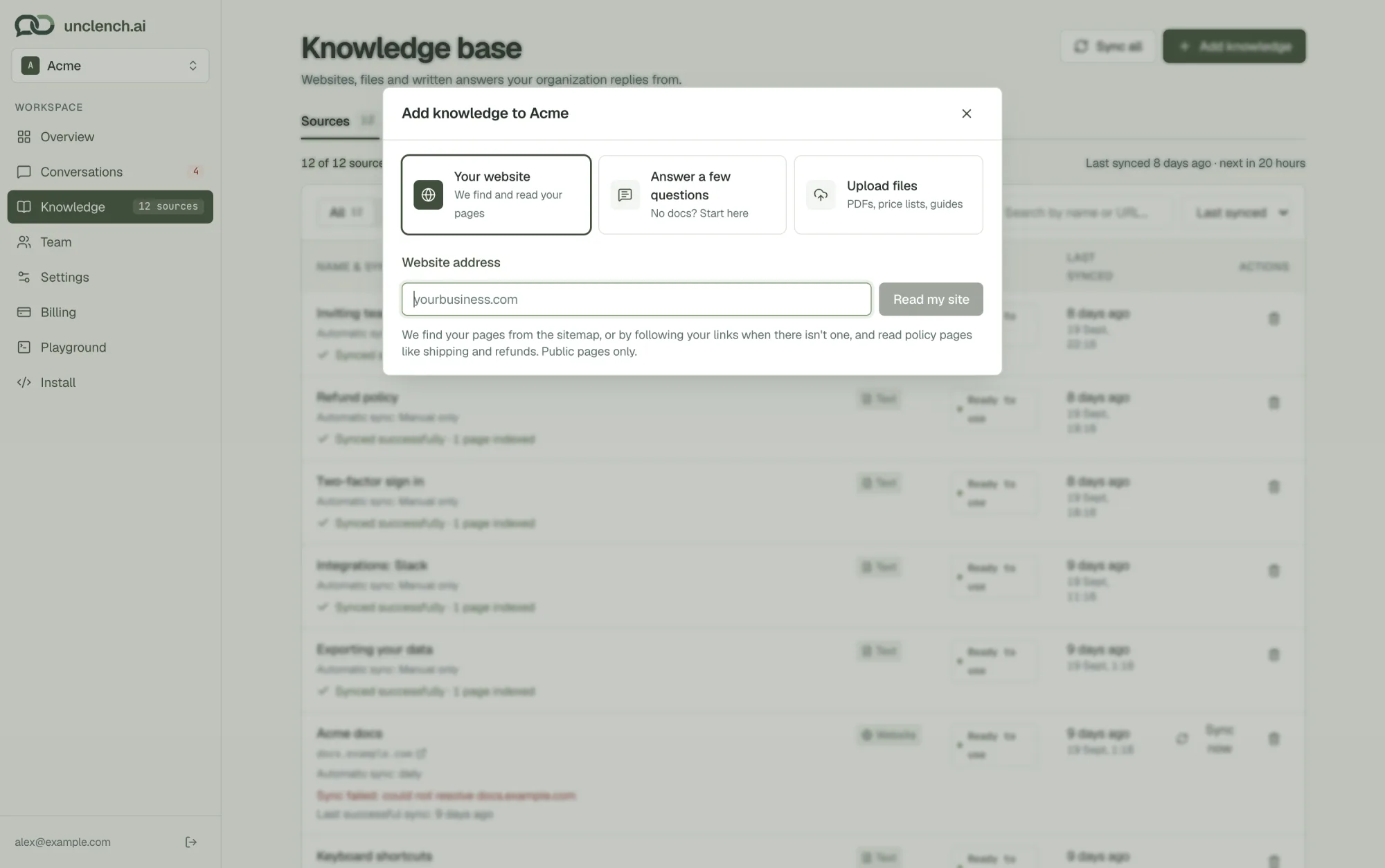
Your website
Type your website address and choose Read my site. We find your pages from your sitemap, or by following links when there isn’t one, and also read policy pages like shipping and refunds. Only public pages are read, so anything behind a login stays out.
This is the best place to start if you already have a site, docs or a help center.
Answer a few questions
No docs yet? We ask you a handful of questions that fit your kind of business, plus an open “Anything else?”. Each answer is saved as its own piece of content.
Upload files
Add PDFs, price lists, guides and other documents. Supported types:
- PDF (up to 20 MB)
- Plain text (.txt)
- Markdown (.md)
- CSV
Word documents, Notion and Google Drive aren’t supported yet. Export them to PDF or text first.
Your sources
Everything you add appears in the Sources tab with its status. New content takes a moment to be read before it’s ready.
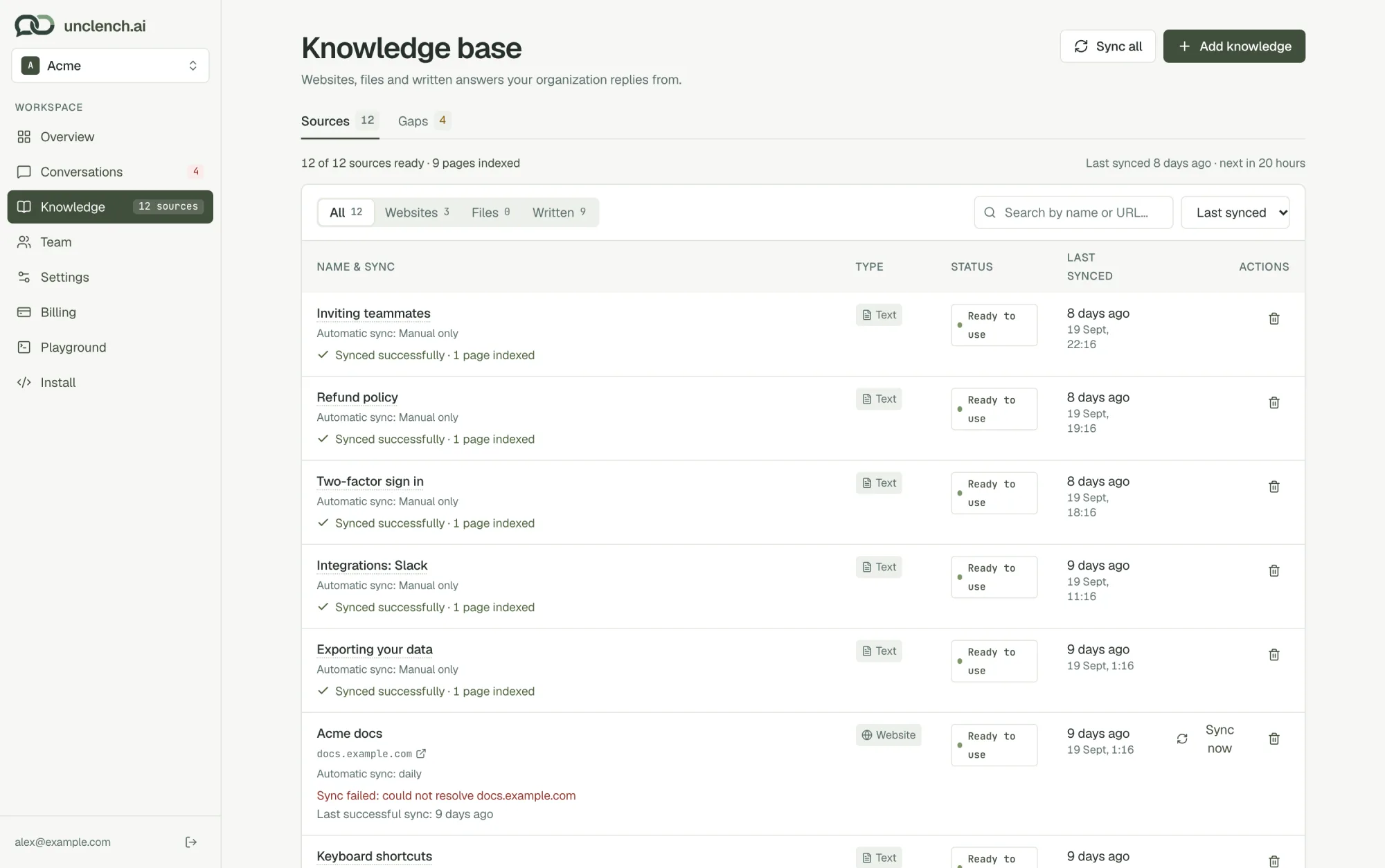
Each source shows one of these statuses:
| Status | What it means |
|---|---|
| Waiting to start / Getting ready | We’re reading it. It’ll be ready shortly. |
| Ready to use | Your agent answers from it. |
| Ready with issues | Most of it worked, but some pages or parts couldn’t be read. |
| Something went wrong | It couldn’t be read. Choose Retry, or check the address. |
Use the filters to see only Websites, Files or Written content, or search by name or address.
Keeping it up to date
Websites update on their own once a day. When you change your site, the agent picks it up at the next daily sync. To pick it up straight away, choose Sync now on that website, or Sync all at the top of the page.
After each sync the source shows what changed, for example “Synced successfully · 3 new · 1 updated”.
Files and written answers don’t change on their own. To update one, add the new version and remove the old one.
To remove anything, use the bin icon on its row.
How much you can add
Each plan has a limit on the number of sources. A whole website counts as one source, however many pages it has. Answers you write from knowledge gaps don’t count towards the limit.
| Plan | Sources |
|---|---|
| Starter | 25 |
| Growth | 50 |